Easy AI Generators

Easy AI Generators · image workbench

Free AI Image Generator From Text or an Image

Start with a text prompt, or add a reference image to guide the composition, color, or style. Continue to generate your first AI image, then refine one detail at a time.

Upload a reference image, then describe what you want to change.

Enter a prompt, optionally add a permitted reference image, then continue to the matching generator.

Six visual directions

See What You Can Create With an AI Image Generator

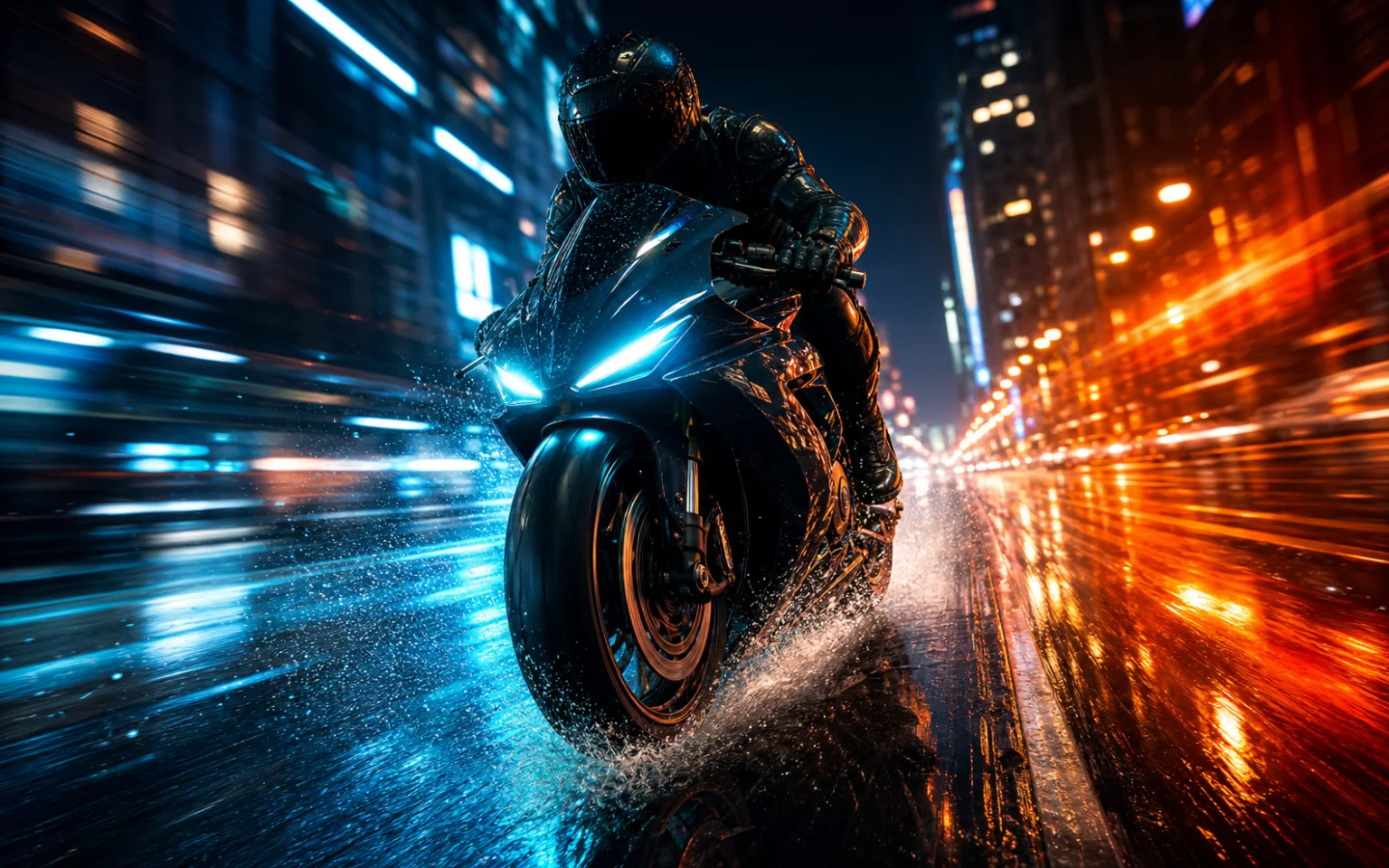
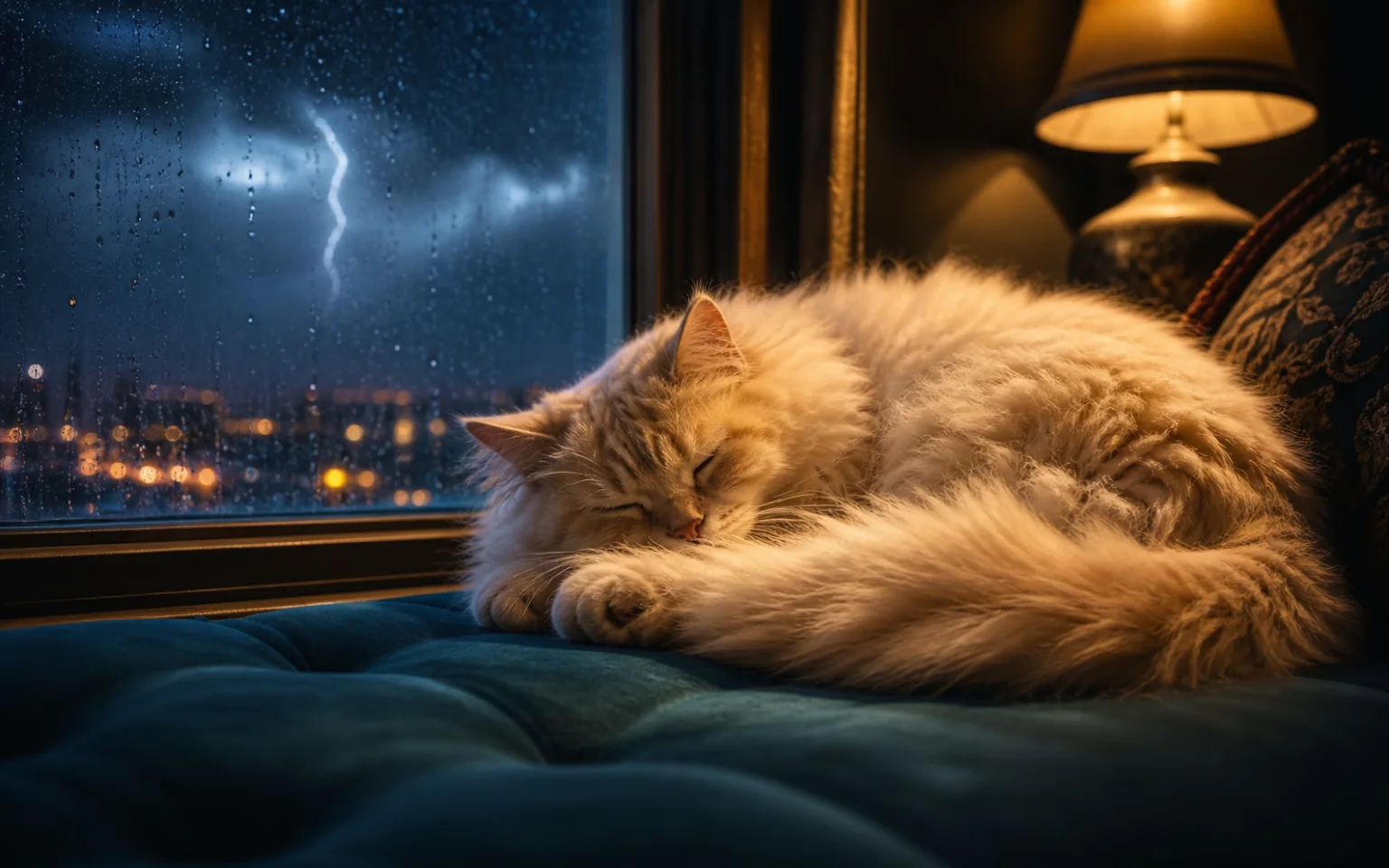
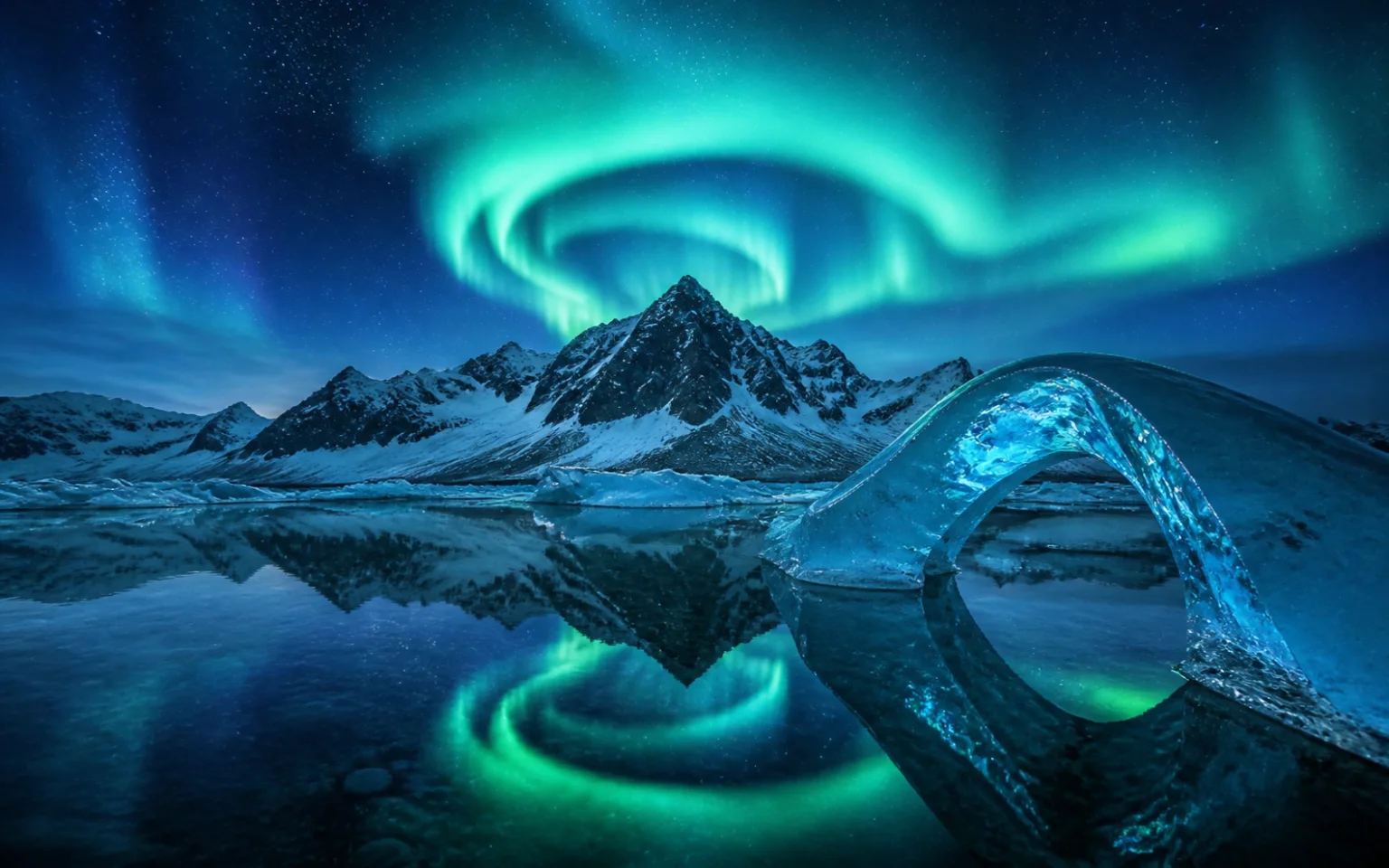
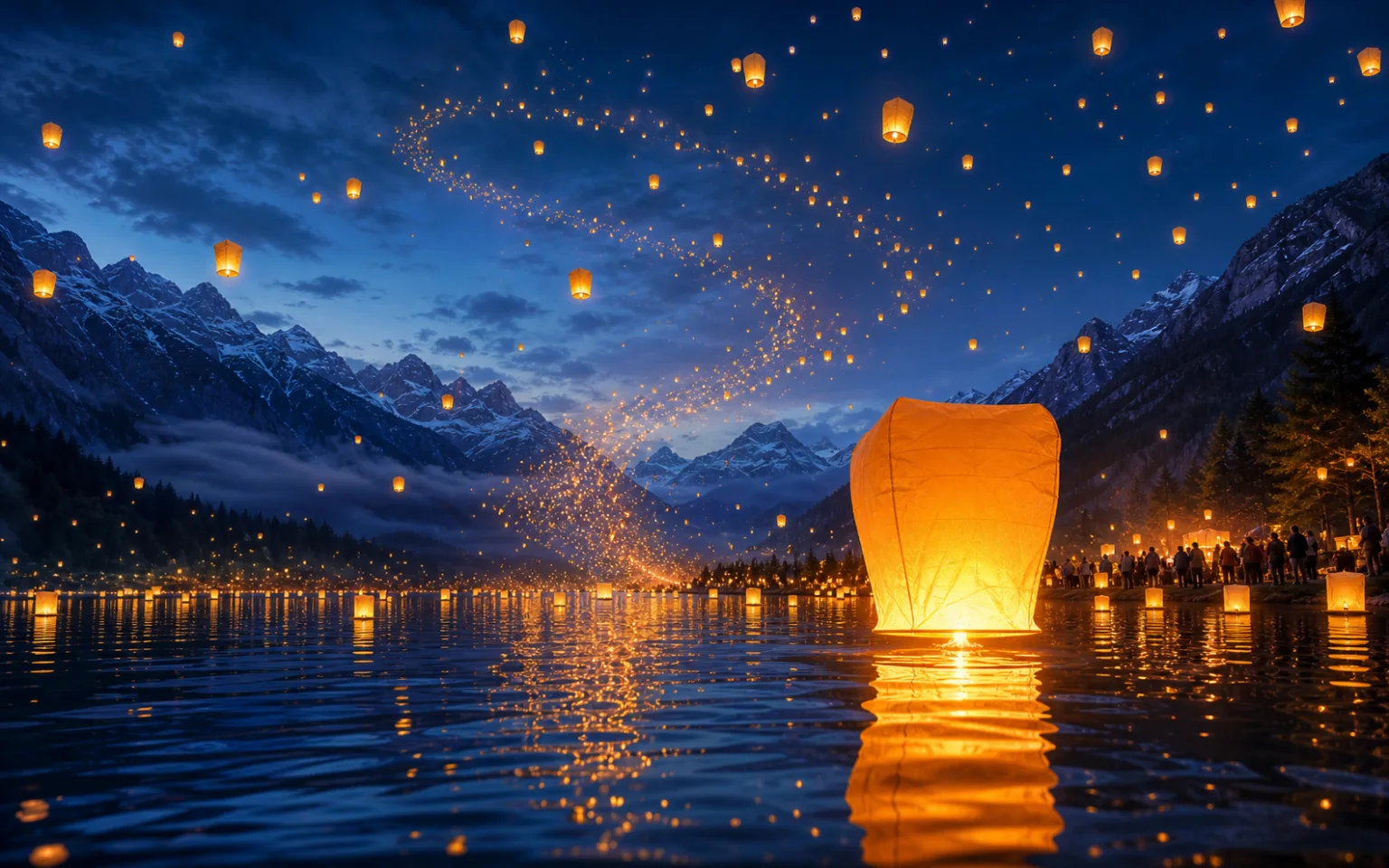
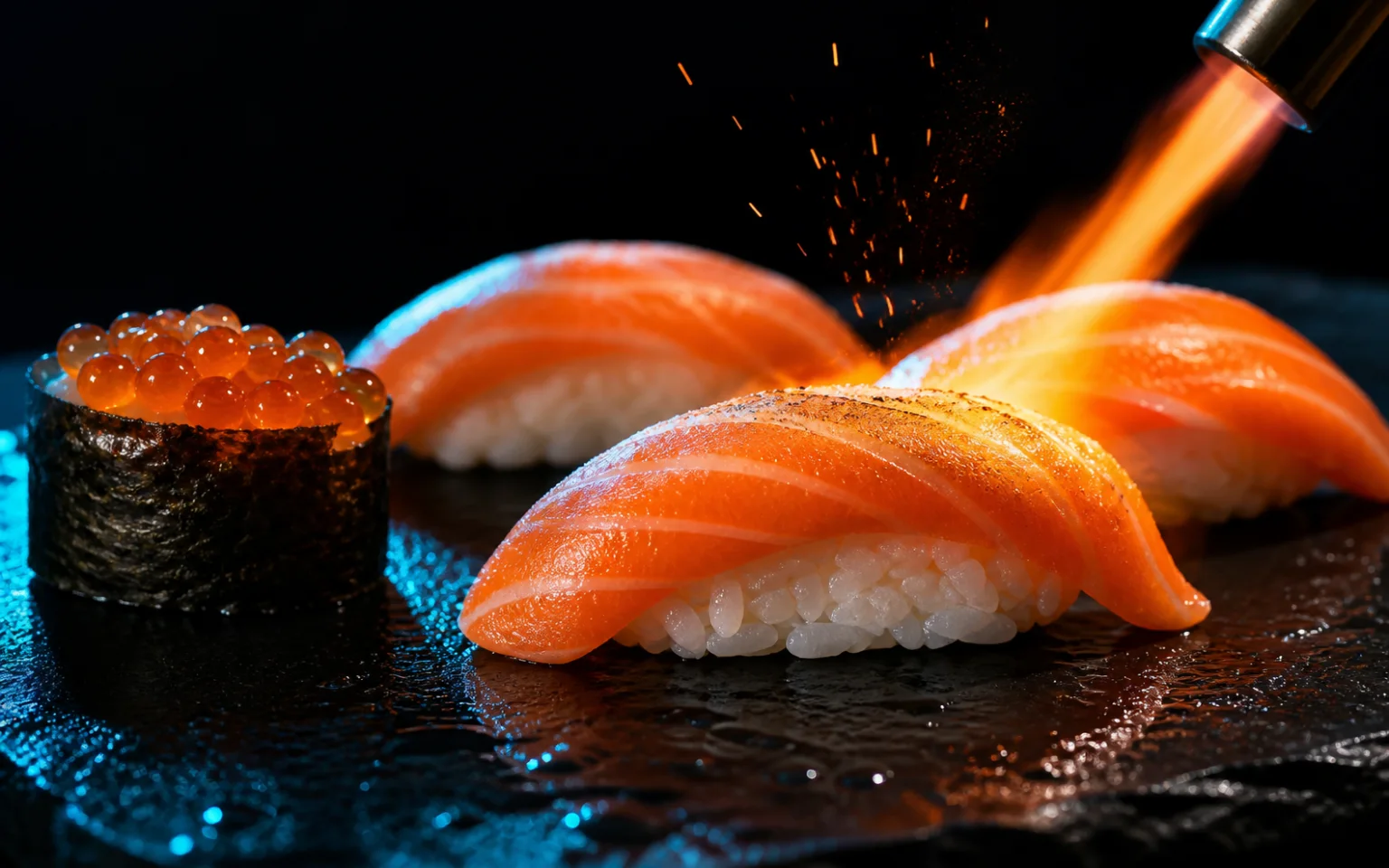
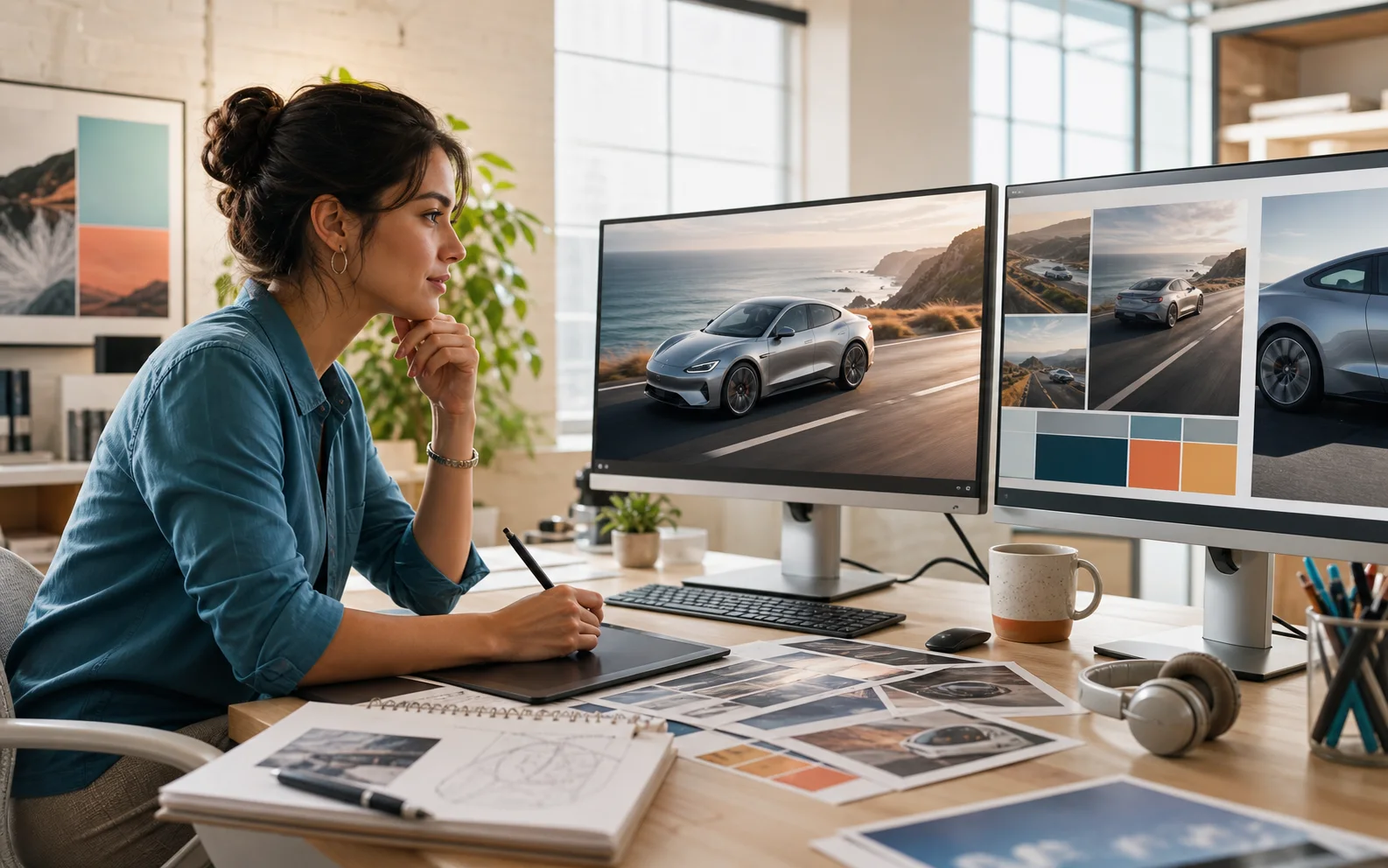
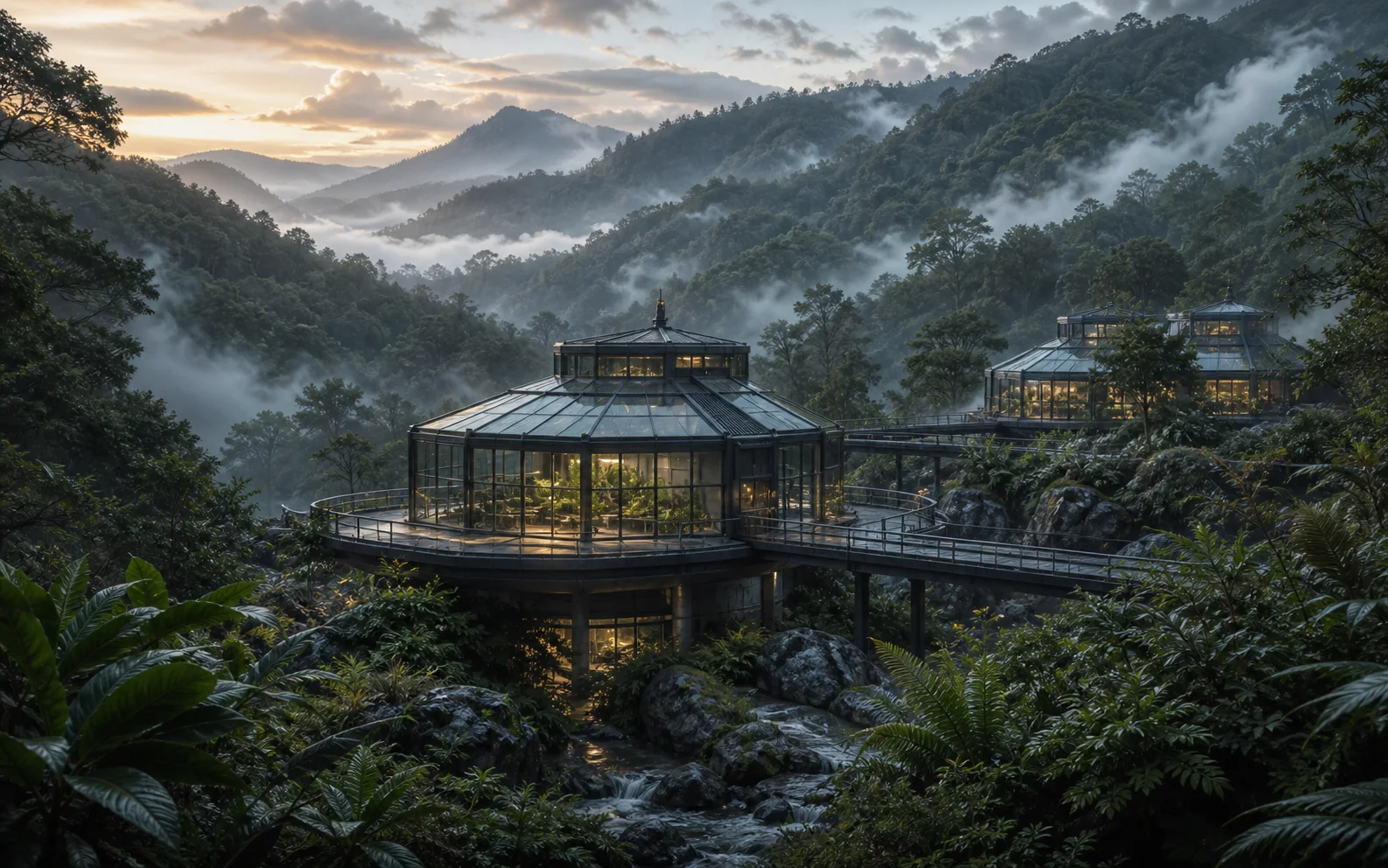
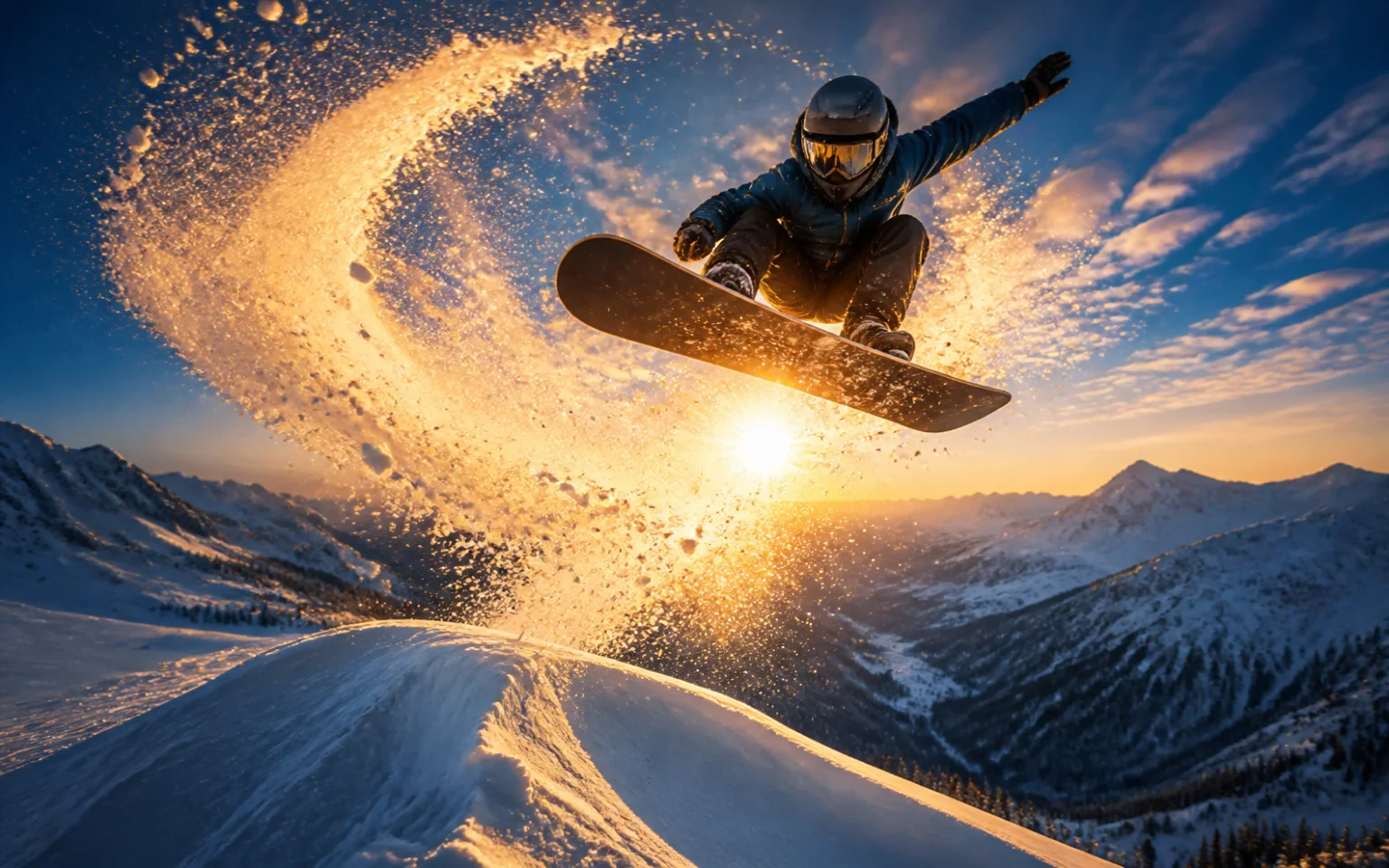
Explore six very different AI-generated image directions—from high-speed action and cinematic vehicles to pets, landscapes, events, and food. Each scene includes the prompt choices and review cues behind the result.

Reference image workflow

Guide a New Image With a Reference

Use an image to hold onto the product shape and composition, then use your prompt to direct a new setting, light, or mood.

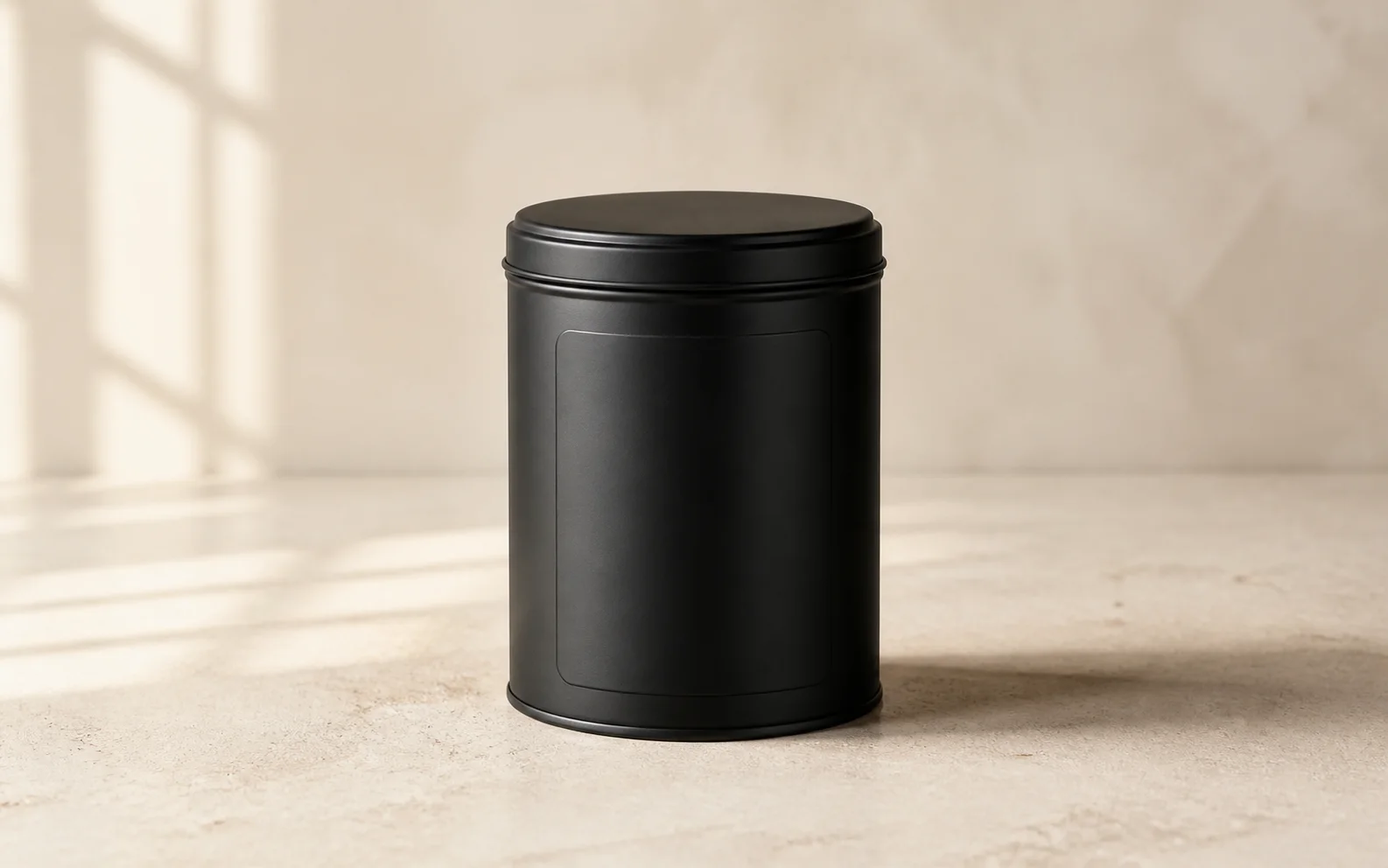
1. Upload a reference

Matte black coffee tin on pale limestone with a blank label panel

2. Describe the change

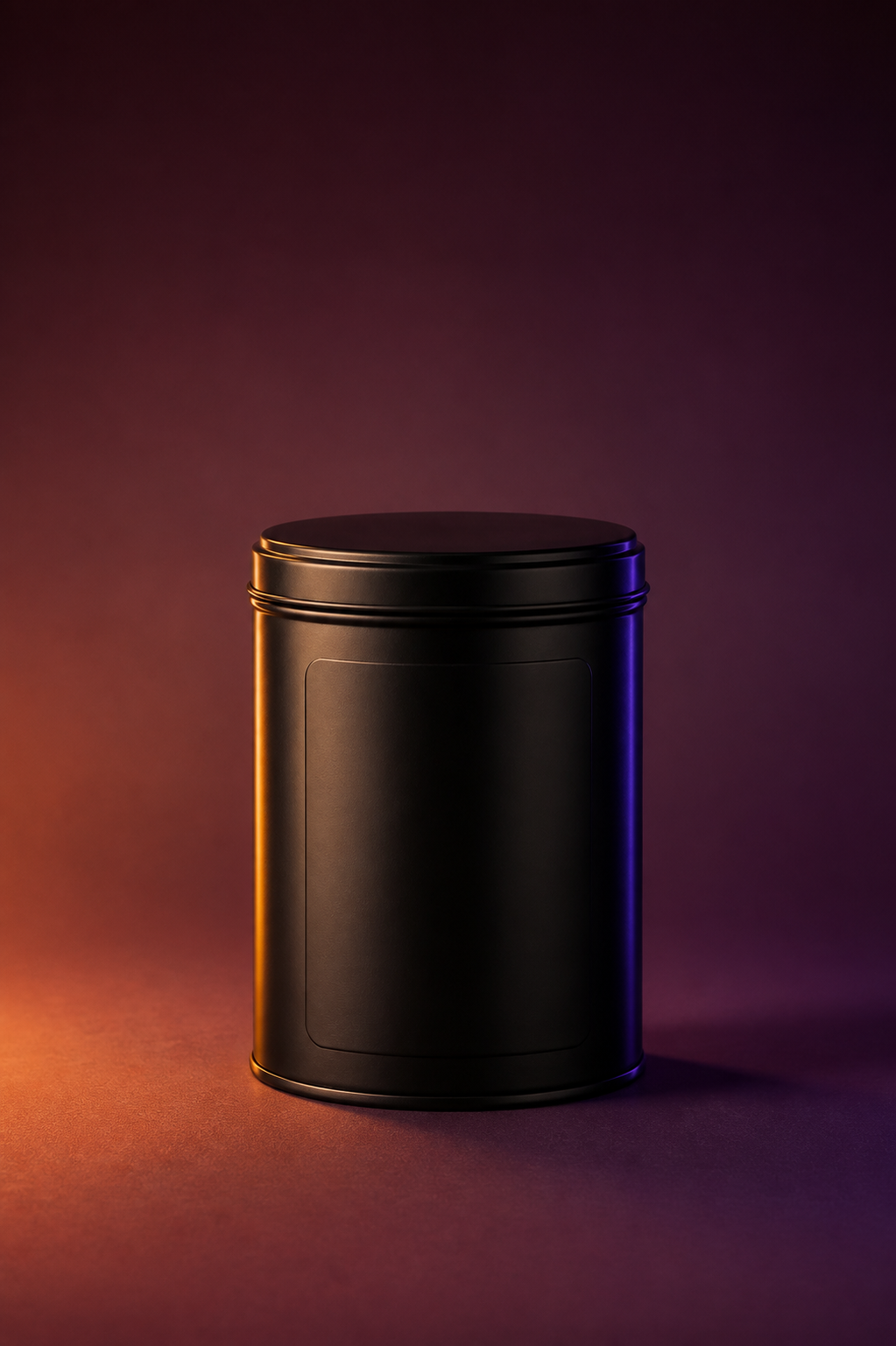
Turn this matte black coffee tin into a premium editorial product photograph with a warm amber rim light, a subtle violet edge light, and a deep burgundy studio background. Keep the tin centered with its blank label panel clear.

3. Generate a new direction

Matte black coffee tin transformed into a warm burgundy editorial product photograph

How to use

How to Use the AI Image Generator

Create from text alone or add a permitted reference image for clearer visual direction. Follow these three simple steps to turn your idea into an AI-generated image.

  1. 01

    Describe the Image

    Write the subject, scene, style, lighting, composition, and intended use. Put the most important visible details first.

  2. 02

    Add a Reference Image if Needed

    Choose a permitted image when composition, pose, palette, or product shape should guide the result, and state what should stay or change.

  3. 03

    Generate Your AI Image

    Select Continue to Generate to create your image. Review the result, then adjust the prompt and generate another version if needed.

Try It in the Workbench

AI image prompt guide

How to Write an Effective AI Image Prompt

Use this four-part template to turn a rough idea into a clear text-to-image prompt. Start with the subject, then add the scene, visual direction, and final composition.

Complete prompt example
A matte black coffee tin standing on pale limestone in a quiet studio, restrained editorial product photography, soft window light from the left, centered square composition with clear label space, no extra objects.
Four-part prompt templateSubject & action + scene & mood + style & lighting + composition & format
A

Start With the Subject and Action

Name the main subject, its defining traits, and what it is doing. Put this first so the image has a clear focal point.

B

Set the Scene and Mood

Describe the location, background, time, weather, or atmosphere only when it changes the result.

C

Choose a Style and Lighting

Choose one visual direction—such as photorealistic, editorial, 3D, anime, or watercolor—and state the light source or mood.

D

Define the Composition and Format

Set the camera view, subject placement, aspect ratio, text-safe space, and one critical constraint for the final use.

For creators and creative teams

AI Image Generator for Creators, Marketers, Game Developers, and Artists

Choose your role to see how AI-generated images can help you grow engagement, test campaign ideas, explore characters, or overcome creative block.

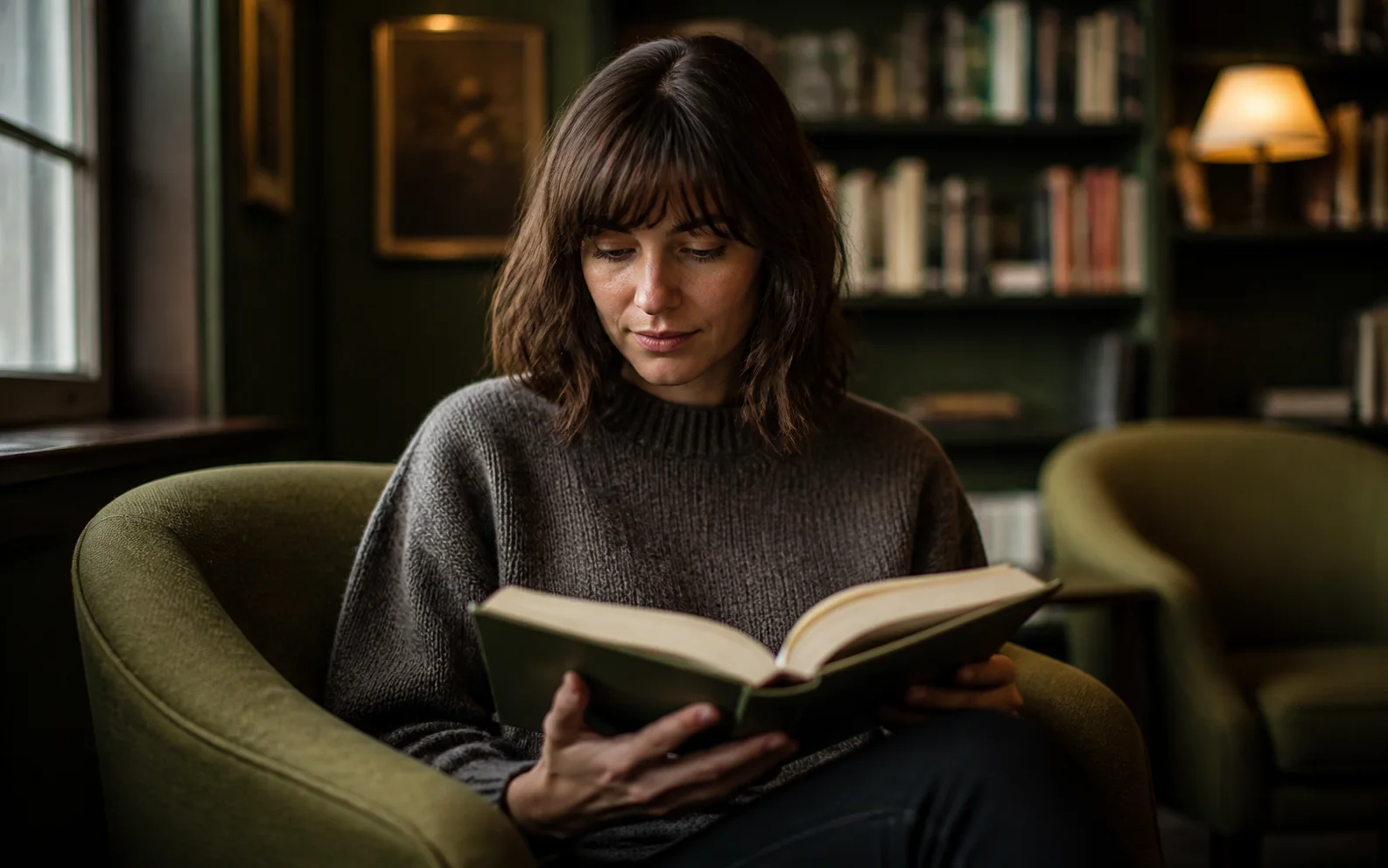
AI-generated editorial portrait representing visual content for creators and personal brands

Increase Social Engagement by Up to 70%

Create fun, engaging images in a few clicks. Post more often and give your audience more reasons to like, view, and comment.

Free access, clear conditions

What You Get With the Free AI Image Generator

Use free text-to-image or image-to-image tools after creating a free account or signing in. Welcome credits let you start generating; check the current credit, download, privacy, and commercial-use conditions before you create.

Start with welcome creditsCreate a free account or sign in to receive welcome credits, then begin with a text prompt or a permitted reference image. Your available credit balance and any generation limits are shown in the generator.
Download your imageDownload options are available after generation. Check the current image size, format, and watermark conditions before using the result.
Protect private workFree outputs may be reviewed, displayed, or retained. Avoid uploading confidential images, private documents, or sensitive client material.
Check commercial useDo not assume every free result is cleared for advertising, resale, or client work. Review the current plan terms and any third-party rights first.

AI image generator help

Free AI Image Generator: Questions and Answers

Find quick answers about generating AI images from text or a reference image, writing better prompts, generation time, downloads and upscaling, and improving a result that is not quite right.

Is this AI image generator free online?

Yes. Create a free account or sign in to receive welcome credits and use the text-to-image or image-to-image tools. Your current credit balance, queue, and generation limits appear in the generator.

Should I use text to image or image to image?

Choose text to image when you want to create a new scene from words. Choose image to image when an existing picture should guide the composition, colors, pose, shape, or overall look.

What should I write in an AI image prompt?

Describe the main subject first, then add the setting, style, lighting, composition, and image format. Put the most important visible details near the beginning and keep the prompt focused.

How long does it take to generate an AI image?

Generation time depends on the selected tool, model, image settings, and current queue. The generator will show progress while your image is being created.

Can I download, edit, or upscale my image?

Download and improvement options appear after generation. Available file sizes, formats, editing tools, and upscaling options depend on the generator and plan you choose.

What should I do if the first image is not right?

Identify the biggest visible problem, then change one part of the prompt at a time. Clarify the subject, camera view, lighting, composition, or unwanted detail and generate another version.

Ready to create?

Create Your AI Image From a Prompt or Reference

Describe what you want or add a reference image, then generate your first result and refine the details until it looks right.

Start Creating FreeNo perfect prompt needed—start with a simple idea and improve it as you go.